
After years of faithful service in church offices, Microsoft Publisher reaches the end of its life this week.
If your church uses Publisher through a Microsoft 365 subscription, it will no longer be available after Thursday, October 1. After that date, you will not be able to open or edit your .pub files in Publisher.
If your church owns a standalone copy (Publisher 2021 or older, purchased outright), the program will keep working, but Microsoft will stop supporting it on October 13. That means no more fixes or security updates, and it will only get harder to use over time.
This is not a crisis, but it is a deadline. The most important thing you can do this week takes just a minute or two per file.
Save your files as PDFs
For each Publisher file:
- Open the file in Publisher.
- Go to File > Save As.
- Choose where to save it.
- Change the file type to PDF and click Save.(If you see an Options button, choose the highest quality setting available.)
Note: Using Publisher’s Export to PDF feature is also an option.
Don’t stop at this week’s bulletin
It’s easy to think only about Sunday. But your Publisher files hold years of your church’s life together. Before Thursday, look for:
- Funeral and memorial service bulletins
- Ash Wednesday, Holy Week, and Easter services
- Advent, Christmas Eve, and Lessons and Carols
- Baptisms, confirmations, weddings, and ordination or consecration services
- Homecoming, anniversary, and other special services
- Newsletters, letterhead, certificates, directories, and event flyers
Tip: Search for “.pub” in File Explorer on your computer, in OneDrive, and in SharePoint to find files you may have forgotten about. Also check the church’s older computers and flash drives, and ask anyone who used to create your bulletins.
Have hundreds of files? Microsoft offers a free script that can convert many Publisher files to PDF at once. If you have a tech-savvy volunteer, it’s worth a look. Find it on Microsoft’s Publisher retirement page.
Why a PDF is all you need
A PDF keeps your bulletin looking exactly the way you designed it. You can print it as is, and more importantly, you can open it in Canva or Affinity and rebuild it as a new, editable template. Your layout, text, and images come along, so you are not starting from a blank page.
Expect to do a little tidying after import. Fonts may be swapped for similar ones, and some text boxes may need to be joined back together. But the hard part, your design and content, will be preserved.
Neither Canva nor Affinity can open .pub files directly. The PDF is your bridge.
Missed the deadline? Don’t panic. There are some programs out there that can convert .pub files. It’s not ideal, but can help in a pinch.
Do your homework before choosing a new tool
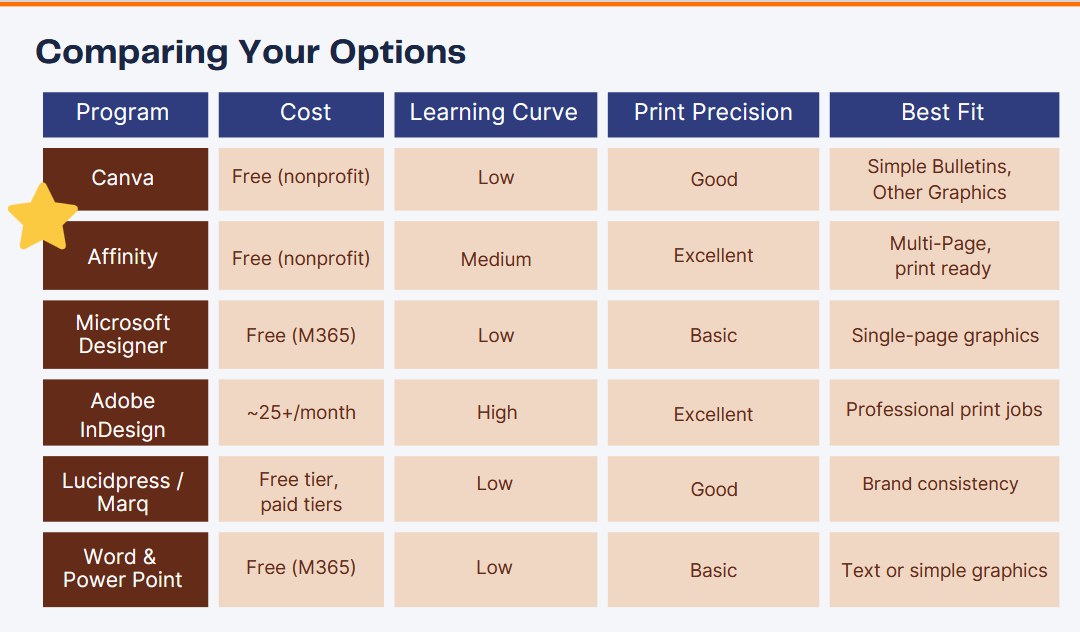
There are many good options out there, and the right one depends on your church. At our Beyond Publisher training, we encouraged churches to think through six questions:
- Cost. Do you need a free option? Many tools offer free access to churches as nonprofits.
- Ease of use. Who will be doing the work, and how comfortable are they with computers?
- Print quality. If you send bulletins to an outside printer, you need a tool that exports print-ready (CMYK) files.
- Templates. Do you want ready-made designs to start from?
- Collaboration. Do you want to edit and comment together with your pastor or team inside the program?
- Longevity. Will this tool still be supported next year and the year after?
For most of our churches, we recommend a combination of Canva (free for nonprofits, visual, template-friendly, and great for collaboration) and Affinity (free with a Canva account, and the closest thing to Publisher, with master pages, text wrap, and linked text boxes). Other options include Microsoft Word and PowerPoint, Microsoft Designer, Adobe InDesign, and Marq. Take some time to try a tool before you commit.
A word of caution: don’t get scammed
We are already seeing people and companies offer to convert your Publisher files for a fee. For some churches with a large archive or very complex layouts, a paid service might be worth considering. But the prices we are seeing range from reasonable to ridiculous, and some offers look like outright scams.
Here is the good news: if you have your files saved as PDFs, you do not need to pay anyone. Free tools like Canva and Affinity can open those PDFs, and there are free tutorials to walk you through rebuilding them. If someone contacts you with an urgent, pay-now offer, slow down, ask questions, and reach out to us before you spend a dime.